ช่วยเหลือ Imago
The world is your idea.
ติดต่อเรา
มีคำถาม พบปัญหา หรืออยากเสนอฟีเจอร์ ส่งอีเมลมาได้เลย
imatosupport@gmail.comถ้าเป็นปัญหาการใช้งาน ช่วยบอกรุ่น iPhone เวอร์ชัน iOS และแนบภาพหน้าจอมาด้วย ไม่ต้องส่งไฟล์สำรองข้อมูล เพราะมีวันเกิดและแผนของคุณอยู่
ตั้งวอลเปเปอร์หน้าจอล็อก
- กด บันทึกวอลเปเปอร์ แล้วเลือก บันทึกภาพ
- เปิด ตั้งค่า › ภาพพื้นหลัง › เพิ่มภาพพื้นหลังใหม่ › รูปภาพ
- เลือกภาพ กด เพิ่ม แล้วเลือก ตั้งเป็นคู่ภาพพื้นหลัง
เพิ่มวิดเจ็ตหน้าจอล็อก (iOS 17 ขึ้นไป)
- เปิดแอป Imago อย่างน้อยหนึ่งครั้ง เพื่อส่งข้อมูลให้วิดเจ็ต
- แตะค้างที่หน้าจอล็อก › ปรับแต่ง › หน้าจอล็อก
- แตะช่องวิดเจ็ต แล้วเลือก Imago วิดเจ็ตจะอัปเดตเองทุกเที่ยงคืน
จุดชนนาฬิกา หรือการแจ้งเตือนบังข้อความ
เลื่อน พื้นที่ว่างด้านบน จนจุดไม่ชนนาฬิกา และเปิด เว้นที่ให้การแจ้งเตือน เพื่อยกเป้าหมายและข้อความขึ้นไปเหนือการแจ้งเตือน แล้วบันทึกวอลเปเปอร์ใหม่
ให้วอลเปเปอร์เปลี่ยนเองทุกวัน (คำสั่งลัด)
iOS ไม่ให้แอปเปลี่ยนวอลเปเปอร์เอง แต่แอป คำสั่งลัด ทำได้ แอป Imago มีการทำงาน Get Imago Wallpaper ที่วาดภาพของวันนี้ให้ ตั้งครั้งเดียว:
- เปิดแอป Imago เลือกรุ่น iPhone ให้ถูก แล้วเปิด นาฬิกา ในตัวอย่าง ดูว่าภาพไม่ชนนาฬิกา (พื้นที่ว่างด้านบน 25% เหมาะกับ iOS 26)
- แอปคำสั่งลัด › การทำงานอัตโนมัติ › + › เวลาของวัน › 00:05 › ทำซ้ำ ทุกวัน › เปิด การทำงานอัตโนมัติ (iOS รุ่นก่อนเรียกว่า เรียกใช้ทันที)
- เพิ่มการทำงาน Get Imago Wallpaper แล้วเพิ่ม ตั้งค่ารูปภาพสำหรับภาพพื้นหลัง ต่อท้าย ต้องมีครบทั้งสองอัน ถ้าขาดอันหลังจะได้แค่ภาพแต่หน้าจอล็อกไม่เปลี่ยน
- ในการทำงานนั้น ตั้ง สำหรับ เป็น ล็อคหน้าจอ อย่างเดียว แล้วแตะ ⌄ ปิด แสดงตัวอย่าง, ครอบตัดวัตถุหลัก และ เบลอความชัดเจน (ถ้ามี)
- แตะ ▶ รันหนึ่งครั้ง แล้วในช่อง ภาพพื้นหลัง เลือกวอลเปเปอร์ Imago ที่ใช้อยู่บนหน้าจอล็อก (ถ้าเว้นว่าง iOS จะเพิ่มวอลเปเปอร์ใหม่ทุกวัน)
เช็กว่าตั้งถูก: ล็อกหน้าจอแล้วควรเห็นภาพ Imago ทันทีโดยไม่มีหน้าต่างให้กดยืนยัน ถ้าหน้าจอล็อกไม่เปลี่ยน ดูว่ามี ตั้งค่ารูปภาพสำหรับภาพพื้นหลัง ต่อท้ายแล้ว และช่องภาพพื้นหลังเป็นภาพที่ใช้อยู่ ถ้ามีหน้าต่างให้ยืนยัน ให้ปิด แสดงตัวอย่าง
ใช้ ตั้งค่ารูปภาพสำหรับภาพพื้นหลัง แค่อันเดียว ถ้าเพิ่มหลายอัน iOS จะเอาภาพเดียวกันไปทับภาพพื้นหลังอื่นๆ ของคุณ
ให้ธีมสลับเองทุกวัน
- แอปคำสั่งลัด › การทำงานอัตโนมัติ › แตะการทำงานอัตโนมัติของ Imago
- ในการทำงาน Get Imago Wallpaper แตะ Theme สีฟ้า (ว่างไว้ = ใช้ธีมที่ตั้งในแอป)
- เลือก Rotate daily · สลับทุกวัน แล้วแตะ เสร็จสิ้น
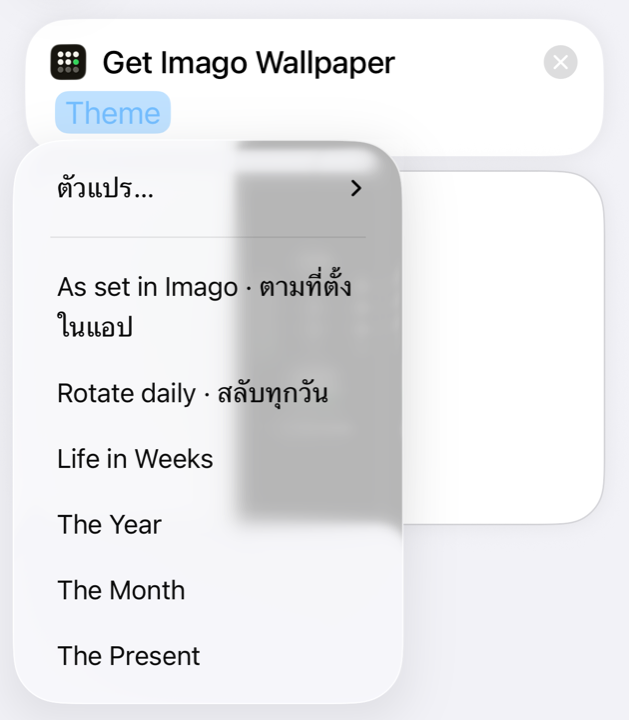
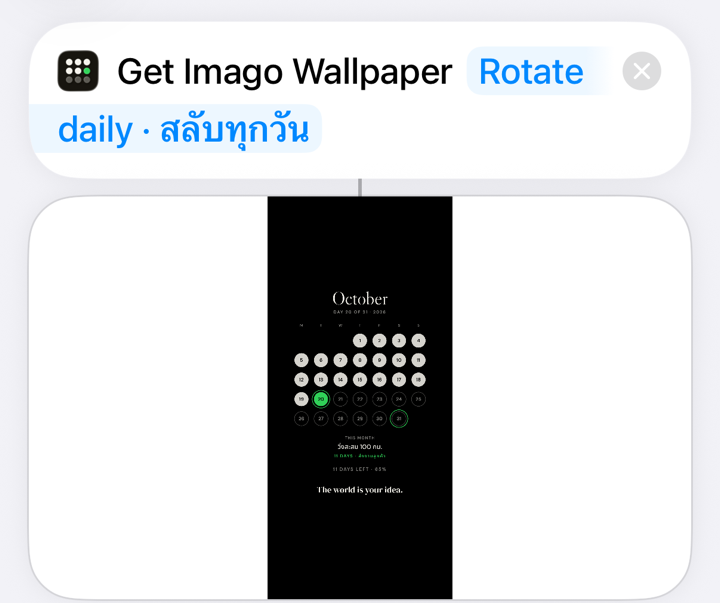
ทุกคืนจะวน Life in Weeks › The Year › The Month › The Present วันละธีม (ถ้ายังไม่ใส่วันเกิดจะข้าม Life in Weeks) อยากได้ธีมเดียวก็เลือกธีมนั้นแทน ถ้าไม่เห็นตัวเลือก ให้ปิดแอปคำสั่งลัดแล้วเปิดใหม่
ไม่ใช้คำสั่งลัดก็ได้: วิดเจ็ตอัปเดตเองทุกวันอยู่แล้ว หรือกด เพิ่มนัดทบทวนทุกวันอาทิตย์ ให้ปฏิทินเตือนกลับมาสร้างภาพใหม่
สำรองและย้ายข้อมูล
กด สำรองข้อมูล แล้วเก็บไฟล์ .json ไว้ใน iCloud Drive บนเครื่องใหม่กด นำเข้าไฟล์สำรอง ข้อมูลอยู่ในเครื่องเท่านั้น Imago จึงกู้ข้อมูลให้ไม่ได้ถ้าไม่มีไฟล์สำรอง
ลบข้อมูลทั้งหมด
กด คืนค่าเริ่มต้น ในแอป หรือลบแอป ดูเพิ่มเติมที่ นโยบายความเป็นส่วนตัว
Imago Support
Contact
Questions, bugs or feature ideas: email us.
imatosupport@gmail.comFor a problem, please include your iPhone model, iOS version and a screenshot. Please don't send your backup file; it contains your birthday and plans.
Set the lock screen wallpaper
- Tap บันทึกวอลเปเปอร์ (Save wallpaper), then Save Image.
- Open Settings › Wallpaper › Add New Wallpaper › Photos.
- Pick the image, tap Add, then Set as Wallpaper Pair.
Add the lock screen widget (iOS 17 or later)
- Open Imago at least once so the widget has your data.
- Touch and hold the lock screen › Customize › Lock Screen.
- Tap the widget area and choose Imago. It updates itself every midnight.
Dots hit the clock, or notifications cover the text
Adjust พื้นที่ว่างด้านบน (top space) until the dots clear the clock, and turn on เว้นที่ให้การแจ้งเตือน (room for notifications). Then save the wallpaper again.
Update the wallpaper every day (Shortcuts)
iOS doesn't let apps change your wallpaper, but the Shortcuts app can. Imago adds a Get Imago Wallpaper action that draws today's image. Set it up once:
- Open Imago, pick the right iPhone model, then turn on Clock (นาฬิกา) in the preview and check the picture clears it (Top space 25% suits iOS 26).
- Shortcuts › Automation › + › Time of Day › 00:05 › repeat Daily › turn on the switch that runs it automatically (Run Immediately on older iOS).
- Add Get Imago Wallpaper, then Set Wallpaper Photo. You need both: without the second one you get the picture but the lock screen doesn't change.
- In that action set it for Lock Screen only, tap ⌄ and turn off Show Preview, Crop to Subject and Legibility Blur (if shown).
- Tap ▶ once, then in the Wallpaper field pick the Imago wallpaper on your lock screen (left empty, iOS adds a new wallpaper every day).
Check it worked: lock your phone and you should see the Imago picture right away, with nothing to confirm. If the lock screen doesn't change, make sure Set Wallpaper Photo follows Get Imago Wallpaper and the Wallpaper field is the one you use. If iOS asks you to confirm, turn off Show Preview.
Use only one Set Wallpaper Photo action; more of them copy the same picture over your other wallpapers.
Rotate themes daily
- Shortcuts › Automation › tap your Imago automation.
- In Get Imago Wallpaper, tap the blue Theme (left empty, it uses the theme set in the app).
- Choose Rotate daily · สลับทุกวัน, then tap Done.
Each night it moves to the next of Life in Weeks › The Year › The Month › The Present (Life in Weeks is skipped until you add your birthday). Prefer one theme? Pick it instead. Don't see the options? Close and reopen Shortcuts.
Prefer not to? The widget already updates every day, or add the weekly review as a reminder to make a new wallpaper.
Back up and move your data
Tap สำรองข้อมูล (Back up) and keep the .json file in iCloud Drive. On a new device, tap นำเข้าไฟล์สำรอง (Import backup). Data lives only on your device, so it can't be recovered without a backup.
Delete everything
Tap คืนค่าเริ่มต้น (Reset) in the app, or delete the app. See the privacy policy.